Events, Experiences, Exhibitions, and Programs: Which One Should I Use?
Muse gives you several ways to sell a ticket. Picking the right one is the most common setup question we get.
The short answer: choose based on how much you need to know about the person buying.
The Quick Answer
| If you need to… | Use |
|---|---|
| Let people walk in. You don't need their name. | General Admission |
| Charge for a special exhibit or gallery show | Exhibition |
| Control how many people enter during a set time slot | Experience |
| Collect names and emails. Maybe a few extra questions. | Event |
| Collect detailed info about a registrant and a participant | Program |
| Take a request for a field trip, rental, or private booking | Group Visit or Private Event |
Think of It as a Ladder
Each type collects more information than the one before it.
General Admission → no information
Exhibition → no information
Experience → no information, but a time slot and a capacity limit
Event → first name, last name, email, plus custom questions
Program → everything above, plus participant details, forms, and check-in
Start at the bottom of the ladder. Only climb higher if you actually need the extra information. More fields mean a slower checkout and more work for your staff.
General Admission
What it is: A basic ticket for a specific date.
Use it for:
-
- Daily admission
- Self-guided tours
- Walk-up visitors
Good to know:
-
- Tickets are tied to one date. If someone shows up on a different day, the QR code will scan as invalid.
- Many museums create a Free Entry type called something like "Free Admission – Date Change" so staff can still let that person in and count them.
Exhibition
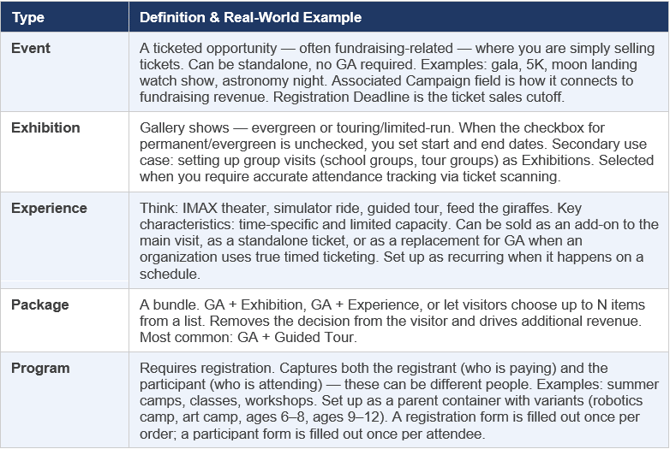
What it is: A ticket for a specific exhibit or gallery show. It works a lot like General Admission.
Use it for:
-
- A special or traveling exhibit with its own ticket price
- An exhibit people pay extra to see
Good to know:
-
- You do not collect names or emails.
- The buyer gets a QR code.
- You can bundle an exhibition with General Admission using a Package.
Don't use it when: You need to know who is coming. Use an Event instead.
Experience
What it is: A timed ticket with a capacity limit. People pick a date and a time slot.
Use it for:
-
- Tours that run at set times
- Rooms or areas that only hold so many people at once
- Anything where you cycle groups through on a schedule
Example: You can only fit 120 people per hour in one gallery. Set up one-hour slots. Someone buys the 2:00–3:00 slot.
Good to know:
-
- You do not collect names or emails.
- Availability updates in real time across your website and your front desk.
- You can set blackout dates to block off days.
Don't use it when: You need a roster of who is attending. Use a Program instead.
Event
What it is: A ticket that collects the buyer's name and email, plus any extra questions you want to ask.
Use it for:
-
- Fundraising galas
- Lectures and talks
- Member-only parties
- Table sponsorships
Good to know:
-
- You get first name, last name, and email for the person who buys.
- You can add custom questions. A common one: someone buys a table of ten, so you ask them to list all ten guests.
- You can cap how many tickets you sell.
- The buyer gets a QR code.
Don't use it when: You need details about each person attending, not just the buyer. Use a Program instead.
Program
What it is: The most detailed option. It collects information about the person registering and the person attending.
Use it for:
-
- Classes and workshops
- Summer camps
- Multi-session courses
- Youth field trips
- Anything where a parent signs up a child
What you can collect:
-
- Registrant name, email, and phone
- Participant name, date of birth, email, and phone
- Custom form answers — food allergies, t-shirt size, who is picking up the child, zip code, waivers
What else you get:
-
- Waitlists that fill automatically when someone cancels
- A check-in screen for the day of
- An exportable attendance roster
- A quick plain-text email to everyone registered
- Age limits that check date of birth at signup
How Programs Are Built
A Program is a container. Inside it you create one or more variants.
Example:
Program: 2027 Summer Camps
Variant 1: Ages 5–8, Mondays, $25 member / $50 non-member
Variant 2: Ages 9–13, Tuesdays, $30 member / $60 non-member
Variants can have different dates, times, prices, and age ranges.
Single Session vs. All Sessions
- Single Session — the person picks one date from a list of available dates.
- All Sessions — the person signs up for the whole run. Use this for a six-week workshop where they attend every Monday.
Group Visits and Private Events
These live under Operations, not Ticketing. They start with a request form instead of a ticket sale.
Group Visit — a teacher wants to bring a class. A tour group wants to book a date.
Private Event — someone wants to rent your space for a party or a meeting.
Self-Service Event — a bookable slot people reserve on their own with no staff involved. Examples: a two-hour photography slot on a closed day, or a birthday party room rental.
Best Practices
Name things so you can find them later.
Put the year in the Program name — "2027 Winter Acrylic Workshop," not just "Winter Acrylic Workshop." This makes sorting and reporting much easier as your list grows.
Remember what the public sees.
Program names and variant names show up on your website. So do Event names. Keep them clear and customer-friendly.
Each type gets its own tab on your website.
Your e-commerce page shows separate tabs for Events, Exhibits, Experiences, Packages, and Programs. Think about how you want visitors to browse before you decide where something lives.
Clone instead of rebuilding.
When next year's session rolls around, clone the existing Program and change the dates. Remember to remove the word "Clone" from the name.
Test in Sandbox, build in Production.
Nothing moves from Sandbox to Production automatically. Try one or two in Sandbox to learn the flow, then build the real ones in Production.
You can edit after publishing.
Use the three-dot menu. Editing the Program changes the container. Click into the Program to edit a variant.
Link straight to what you're selling.
Open the item on your purchase page and copy that web address. Put it on your own website so people skip the browsing step.
Common Mistakes
Using a Program when an Event would do.
If you only need a name and email, a Program adds unnecessary steps for your customer. Use an Event.
Using an Event when a Program is needed.
Events only capture the buyer's information. If you need to know who is actually attending — like a parent registering three children — you need a Program.
Forgetting the required fields.
A Program needs an image and a category before you can publish it.
Building everything as one type.
Some museums decide to put everything in Programs for simplicity. That works, but you lose the faster checkout that Exhibitions and Experiences offer for walk-up sales. Consider a mix: a Program for pre-registration, and a simple ticket for day-of sales.
Still Not Sure?
These categories overlap. Many setups could reasonably go more than one way.
If you're stuck, ask yourself one question: What do I need to know about this person, and when do I need to know it?
The answer usually points to the right type. If it doesn't, reach out to your Muse CSM— we'd rather help you decide up front than have you rebuild later.