
- Settings > Settings > Integrations
*Please note that you will need to update your Muse Lists and MailChimp tags since they are currently not dynamic.
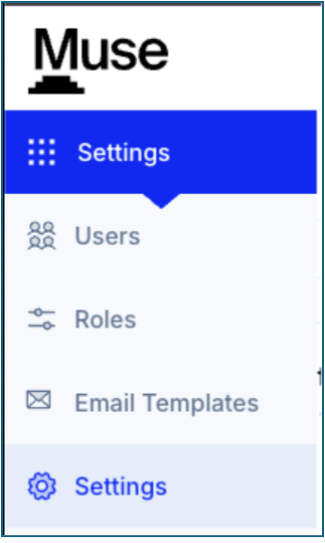
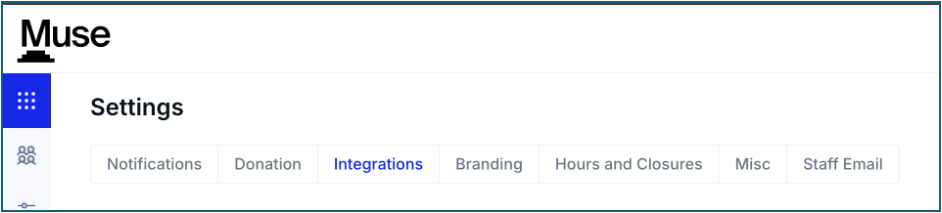
-
Click the down carat on Emails to start your Integration

- Click Select a Connection
- Choose MailChimp
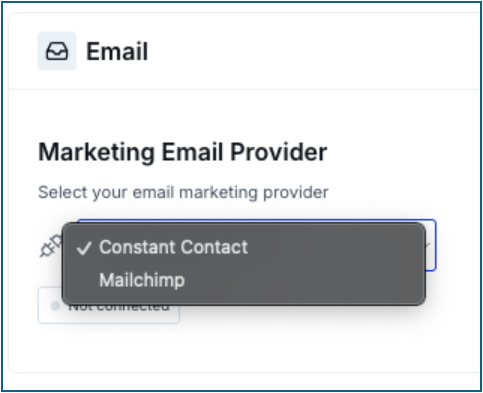
- Click Connect
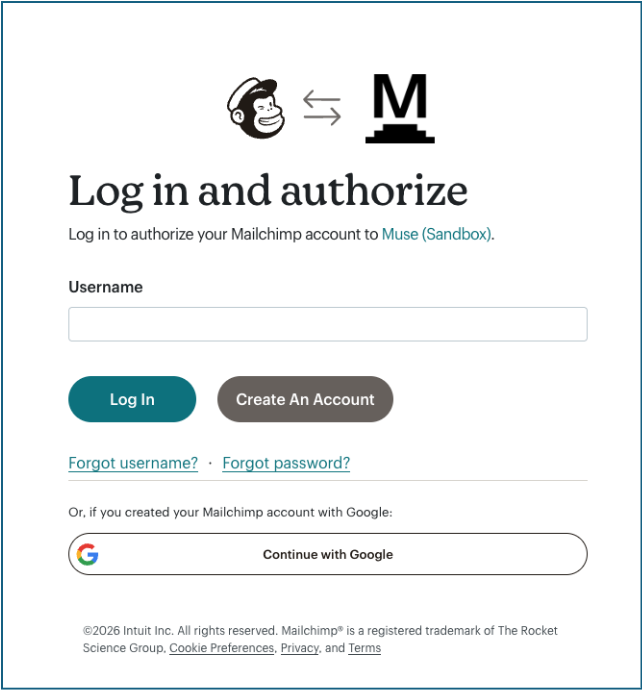
- You will be taken to the MailChimp site
-
Enter the username and password associated with your MailChimp account
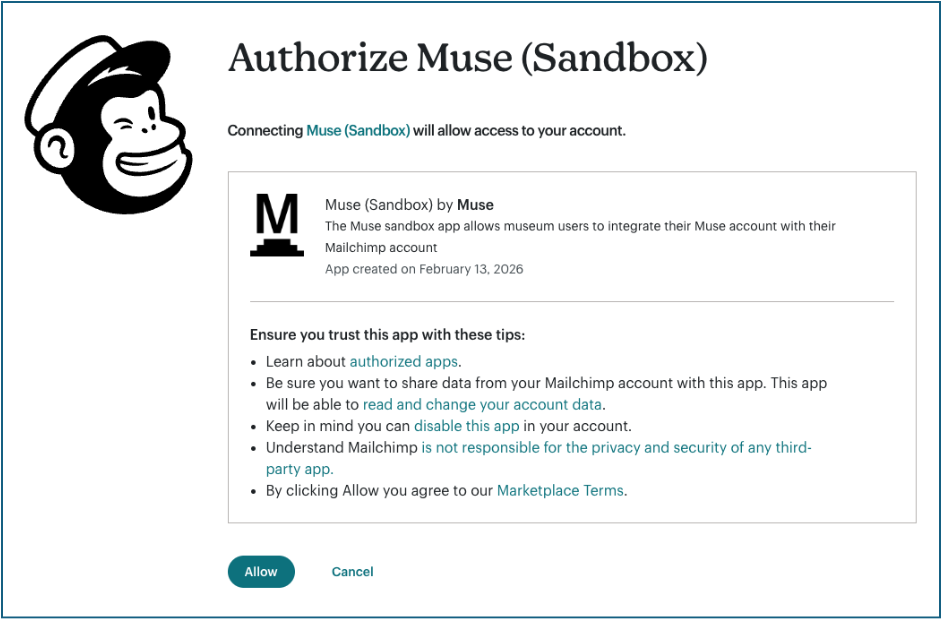
- Click Allow
- You will be directed back to Muse and connected
Creating Tags in MailChimp
- Create a List in Muse- Please see our documentation for the steps to create Lists
- View Lists and click on the list you would like to create a tag for in MailChimp
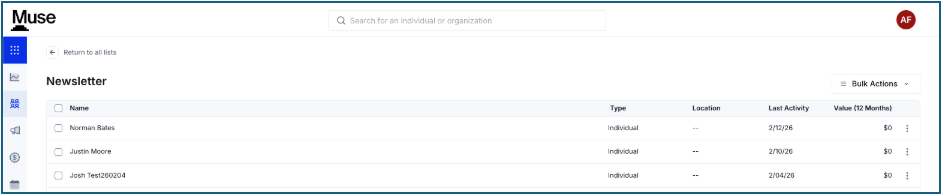
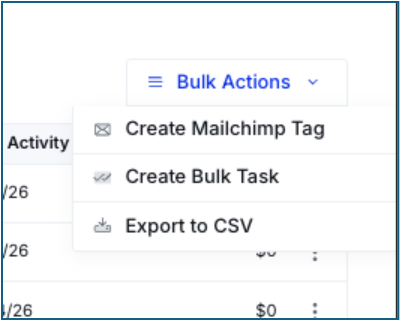
- Click Bulk Actions
- Choose Create MailChimp Tag
-
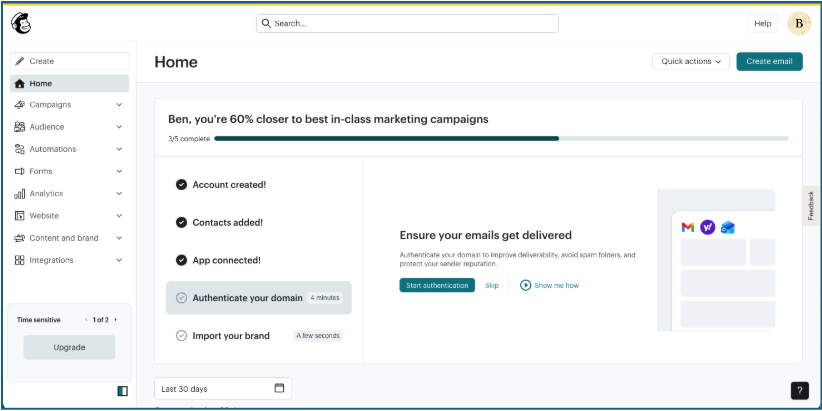
Navigate to MailChimp
-
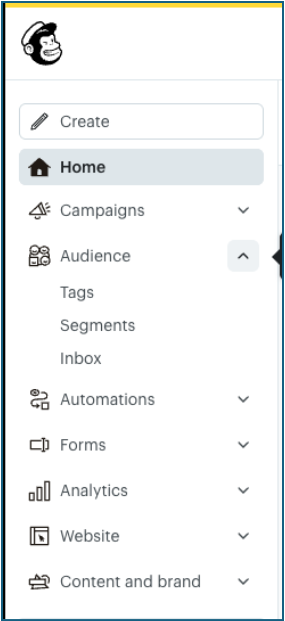
Click Audience and then click Tags
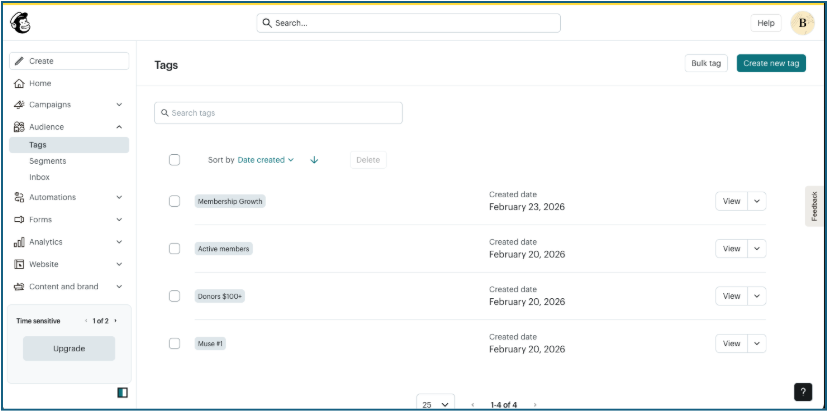
- Here you can see all of your Muse created tags
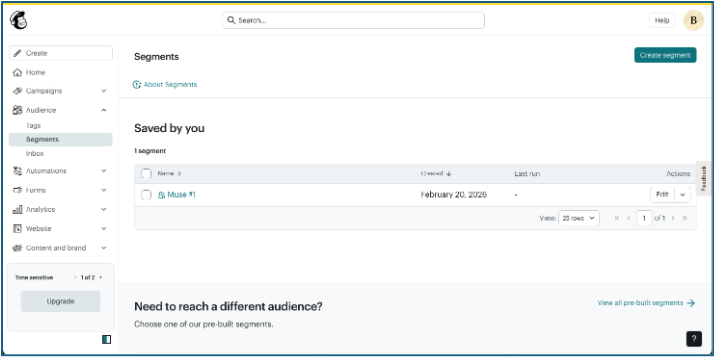
- Click Segments under Audience
-
Click Create Segment
-
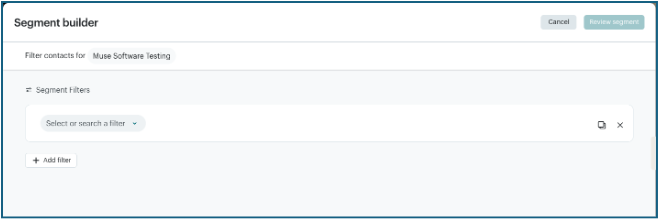
Click Select or search a filter
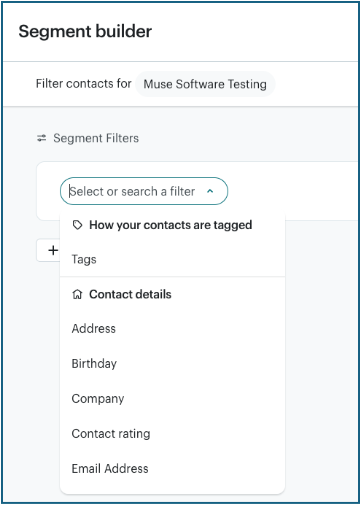
- Choose Tags
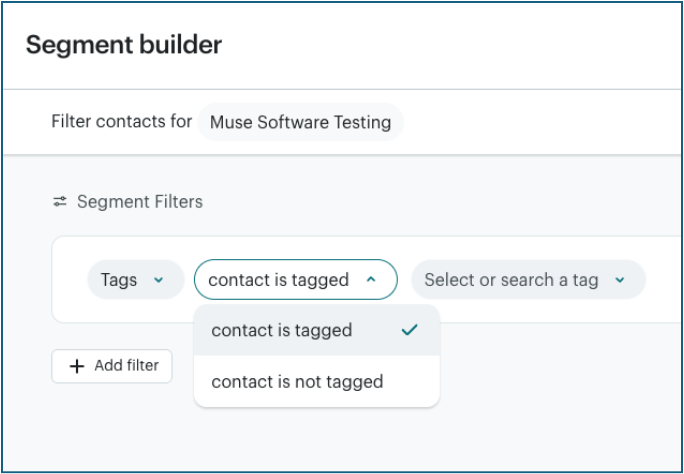
- The options are now whether the contact is or is not tagged
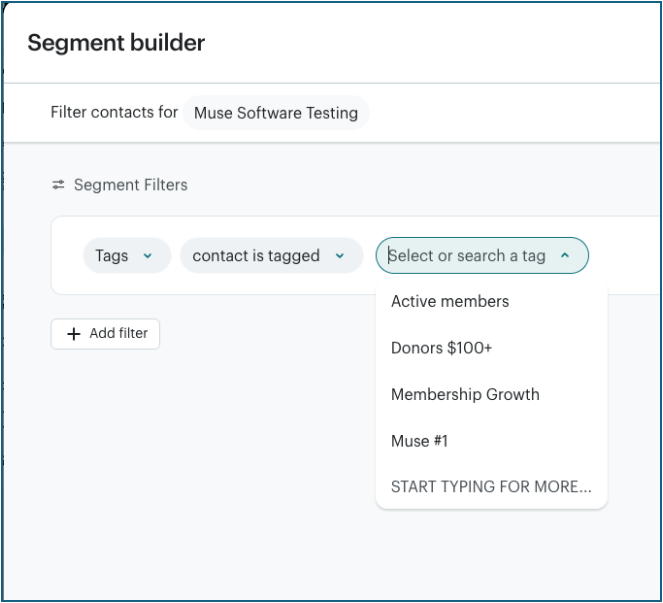
- Select the tag you wish to use
-
Click Review Segment
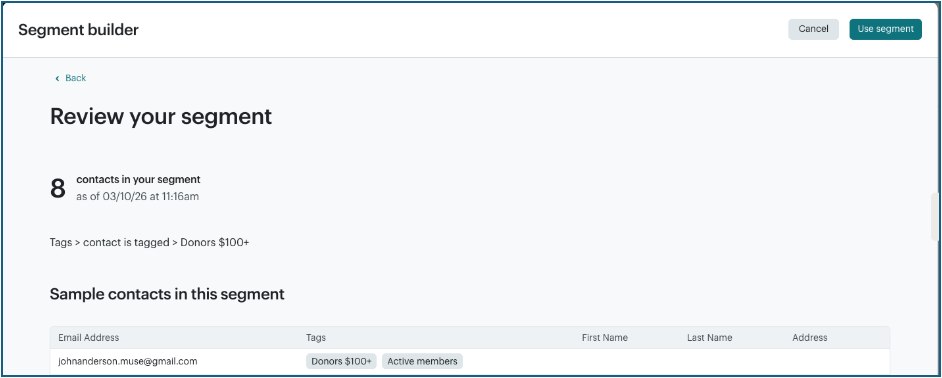
- Click “Use Segment”
- Name the Segment
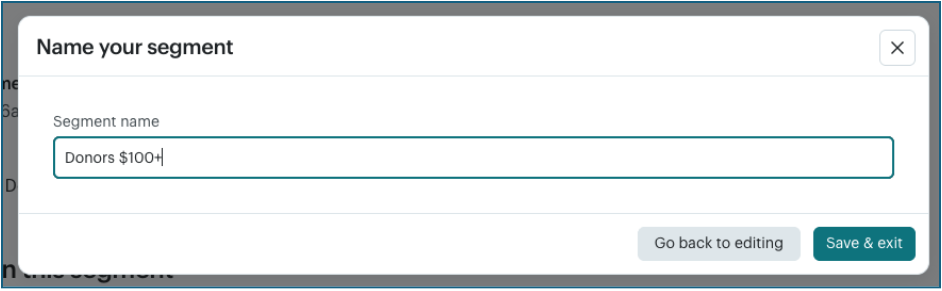
- Click “Save & exit”
- You will now be directed back to your list